Best LinkedIn Carousel Generators 2026: Free & Paid Tools Compared
Comprehensive comparison of 10+ LinkedIn carousel generators. Feature breakdowns, pricing analysis, and use case recommendations to find the perfect tool for your content strategy.

Shanjai Raj
Founder at Postking
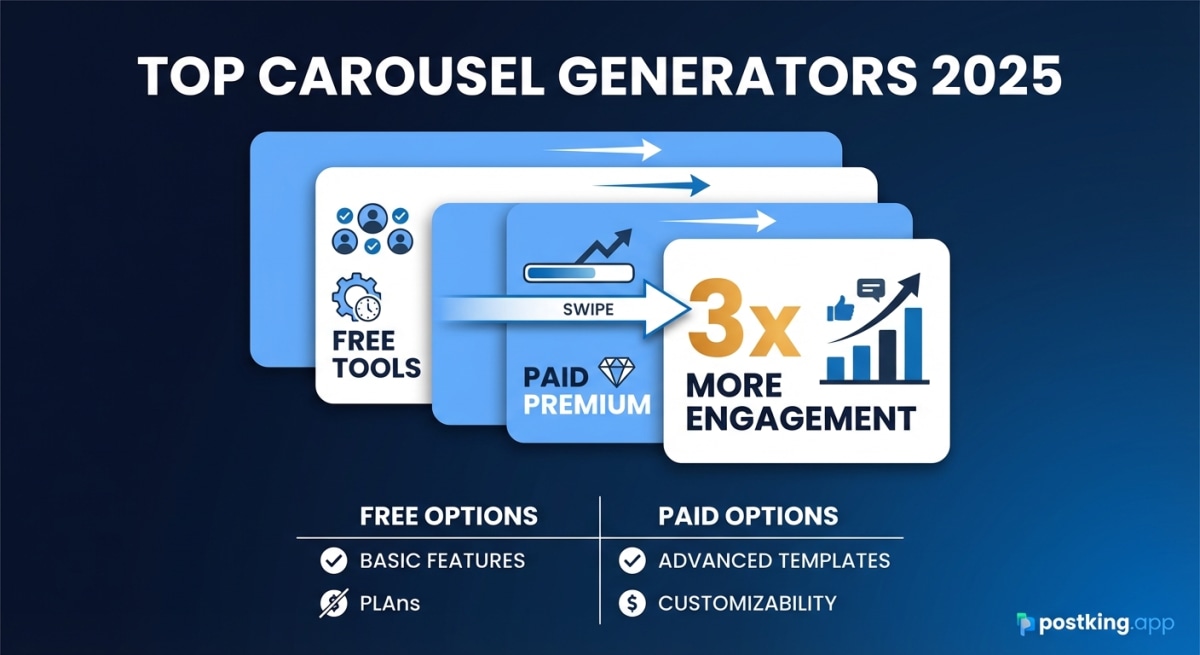
LinkedIn carousels generate 24.42% engagement rates compared to 6.67% for text posts. That's not a marginal improvement. It's a 3.7x multiplier on your content's performance.
The challenge isn't whether to create carousels. It's how to create them efficiently without spending hours in design tools or hiring a graphic designer for every post.
I spent two weeks testing every major carousel generator on the market. Some are genuinely excellent. Others promise AI magic but deliver mediocre templates. A few are completely free with no catches.
This guide breaks down exactly what each tool does, what it costs, and who should use it.
Understanding Carousel Generator Categories
Before comparing specific tools, it helps to understand the three distinct categories:
Speed-First Tools: Minimal features, maximum velocity. You input text, pick a template, export in seconds. Best for consistent posting.
Design-First Tools: Full creative control with drag-and-drop editors. More time investment, more customization. Best for brand differentiation.
AI-First Tools: Content generation from prompts or URLs. Less writing, more editing. Best for repurposing existing content.
Most tools try to be everything. The best ones pick a category and excel at it.
Complete Feature Comparison Matrix
Here's how the major players stack up across critical features:
| Feature | Postking | Canva | Taplio | Piktochart | aiCarousels | Visme | Slidesgo | Designrr | Adobe Express | PostNitro |
|---|---|---|---|---|---|---|---|---|---|---|
| Free Plan | Unlimited | Limited | Basic | Limited | Unlimited | Limited | Free | Trial only | Limited | Limited |
| No Signup Required | Yes | No | No | No | Yes | No | No | No | No | No |
| Template Count | 20+ | 1,000+ | 15+ | 50+ | 100+ | 200+ | 500+ | 30+ | 100+ | 100+ |
| AI Content Gen | No | Pro only | Yes | Yes | Yes | Yes | No | No | Yes | Yes |
| Custom Branding | Yes | Yes | Limited | Yes | Limited | Yes | Limited | Yes | Yes | Yes |
| Direct LinkedIn Post | No | No | Yes (Paid) | No | No | No | No | No | No | No |
| Mobile Optimized | Yes | Yes | Yes | Yes | Yes | Yes | Yes | No | Yes | Yes |
| Collaboration | No | Yes | Yes (Paid) | Yes | No | Yes | No | No | Yes | Limited |
| Export Quality | PDF (High) | PDF/PNG | PDF/PNG | PDF/PNG | PDF/PNG | PDF/PNG | PDF/PPT | PDF/PNG | PDF/PNG | |
| Watermark on Free | No | No | Yes | Yes | No | Yes | No | N/A | No | Yes |
Detailed Tool Breakdown
1. Postking: Best for Speed & Simplicity
Pricing: Free (unlimited, no signup)
Best for: Creators who write their own content and want professional designs fast
Postking's carousel generator strips away everything except what matters: getting from blank page to finished carousel in under 3 minutes.
Key Strengths:
- Zero barriers: No account creation, no credit card, no watermarks
- Template quality: 20+ professionally designed themes covering dark, light, gradient, and specialty options
- Layout flexibility: 3 distinct layout styles (Classic, Centered, Bold) that change content hierarchy
- Profile integration: Add your photo and handle to build brand consistency
- Mobile preview: See exactly how your carousel looks on phones before posting
- Export optimization: PDFs are pre-sized to LinkedIn's optimal 1080x1350px format
Limitations:
- No AI writing assistance (you provide all copy)
- No scheduling or direct posting
- No team collaboration features
- No analytics or performance tracking
Ideal workflow:
- Write your carousel content in a doc or notes app
- Open Postking (no login needed)
- Pick a template that matches your brand
- Paste your content, add slides as needed
- Customize colors if desired
- Download PDF, upload to LinkedIn
Pricing value: Completely free with no limitations makes this the best starting point for most creators.
Bottom line: If you know what you want to say and just need it to look professional, this is the fastest path from idea to published carousel.
2. Canva: Best for Design Flexibility
Pricing: Free (limited), Pro at $12.99/month, Teams at $14.99/user/month
Best for: Marketers who need complete creative control and brand consistency
Canva dominates the design space for a reason. With over 1,000 LinkedIn carousel templates and a full-featured editor, you can create anything from minimal text slides to complex infographics.
Key Strengths:
- Template variety: Largest template library by far (1,000+ carousel-specific)
- Complete customization: Edit every element - fonts, colors, spacing, images, shapes
- Brand Kit: Save brand colors, fonts, and logos for one-click consistency (Pro feature)
- Stock library: Millions of photos, illustrations, icons, and videos included
- Team collaboration: Multiple editors, commenting, version history
- Multi-format: Same design can be resized for Instagram, Facebook, etc.
Limitations:
- Learning curve: More complex than purpose-built carousel tools
- Time investment: Full customization means more time per carousel
- Best features paywalled: Brand Kit, background remover, premium templates require Pro
- No LinkedIn-specific optimizations: You need to know ideal dimensions and formatting
- No AI carousel writing: AI features focus on image generation, not LinkedIn copy
Pricing breakdown:
- Free: Basic templates, 5GB storage, limited stock content
- Pro ($12.99/mo): All templates, Brand Kit, background remover, premium stock content
- Teams ($14.99/user/mo): Everything in Pro plus team collaboration, brand management
Ideal workflow:
- Search "LinkedIn carousel" in template library
- Pick a template as starting point
- Customize design to match your brand
- Add your content across slides
- Export as PDF for LinkedIn
Bottom line: Worth the investment if you're creating carousels regularly and want them to look distinctly different from everyone else's. Overkill if you just want something professional-looking quickly.
3. Taplio: Best for AI-Assisted Content
Pricing: Free carousel generator (limited), Full platform at $39/month (Standard), $55/month (Pro), $149/month (Ultimate)
Best for: Personal brand builders who want AI to help with content creation
Taplio positions itself as an all-in-one LinkedIn growth platform. The carousel generator is one piece of a broader toolkit including scheduling, analytics, and lead generation.
Key Strengths:
- AI content generation: Create carousel content from a topic prompt
- Repurposing tools: Convert tweets, Reddit posts, or YouTube videos into carousels
- Profile integration: Your photo and name automatically appear on slides
- Direct scheduling: Post immediately or schedule for optimal times (paid)
- Analytics tracking: See which carousels perform best (paid)
- LinkedIn-optimized: Templates designed specifically for LinkedIn's feed
Limitations:
- Best features require subscription: Free version is quite limited
- Generic design options: Templates are professional but not highly customizable
- AI content needs editing: Generated content is often generic and requires revision
- LinkedIn ToS concerns: Some automation features may conflict with LinkedIn's policies
- Expensive for carousel-only use: If you only need carousels, cheaper options exist
Pricing breakdown:
- Free: Basic carousel generator with limited features
- Standard ($39/mo): Scheduling for 1 account, analytics, content inspiration
- Pro ($55/mo): Multiple accounts, AI writing assistant, CRM features
- Ultimate ($149/mo): Everything plus team features and priority support
AI workflow:
- Enter topic or paste existing content (tweet, article, etc.)
- AI generates carousel outline and content
- Edit and refine the generated copy
- Choose from available templates
- Customize colors and branding
- Schedule directly to LinkedIn
Bottom line: Good value if you want the full LinkedIn toolkit (scheduling, analytics, lead gen). Expensive if you only need carousel creation.
4. Piktochart: Best for Data-Heavy Carousels
Pricing: Free (limited), Pro at $14/month, Business at $29/month
Best for: B2B marketers, consultants, and anyone presenting data or statistics
Piktochart started as an infographic tool, which shows in its carousel capabilities. If your content involves charts, graphs, or data visualization, this tool handles it better than general-purpose generators.
Key Strengths:
- Data visualization: Built-in charts and graphs that look professional
- Multiple AI variations: Generate up to 6 different carousel versions from one prompt
- A/B testing support: Create variations to test different angles
- Professional templates: Infographic-style designs that work well for B2B
- Brand consistency: Save brand colors and fonts
- Team collaboration: Multiple users can edit and comment
Limitations:
- Smaller template library: ~50 carousel templates vs Canva's 1,000+
- No direct LinkedIn posting: Manual export and upload
- Free plan very limited: Watermarks, limited exports
- Better for data than storytelling: Not ideal for narrative carousels
- Steeper learning curve: More complex than simple carousel generators
Pricing breakdown:
- Free: 5 visual credits/month, watermarked downloads
- Pro ($14/mo): Unlimited downloads, no watermarks, brand kit
- Business ($29/mo): Team features, advanced collaboration, priority support
Ideal use cases:
- Survey results and statistics
- Process flows and frameworks
- Comparison charts
- Educational content with data points
- B2B thought leadership
Bottom line: If your carousels regularly include data, charts, or complex visualizations, Piktochart's specialized tools justify the cost. For text-only or simple image carousels, simpler tools work fine.
5. aiCarousels: Best for Content Repurposing
Pricing: Free (unlimited basic carousels), Pro features require subscription
Best for: Content creators repurposing existing material into carousel format
aiCarousels focuses entirely on AI-powered content conversion. If you have blog posts, videos, or other content you want to turn into carousels, this tool streamlines the process.
Key Strengths:
- Multiple input methods: Topic, text, website URL, YouTube link, or PDF
- Repurposing efficiency: Convert existing content quickly
- No signup for basics: Create unlimited carousels without an account
- Fast generation: Typically under 30 seconds from input to draft
- Multi-platform: Optimizes for LinkedIn, Instagram, and TikTok
- 100+ templates: Good variety of professional designs
Limitations:
- AI content quality varies: Often needs significant editing
- Less design control: Limited customization compared to Canva
- No direct posting: Manual export and upload
- Premium features paywalled: Best templates and exports require subscription
- Generic output: AI-generated content can sound robotic
Content conversion options:
- Topic-to-Carousel: Enter a topic, AI creates outline and content
- Text-to-Carousel: Paste article or post, AI summarizes into slides
- Website-to-Carousel: Enter URL, AI extracts key points
- YouTube-to-Carousel: Paste video link, AI creates summary carousel
- PDF-to-Carousel: Upload document, AI converts to slides
Typical workflow:
- Choose input method (topic, URL, text, etc.)
- AI generates carousel draft in 20-30 seconds
- Review and edit AI-generated content
- Select template and customize colors
- Download and post to LinkedIn
Bottom line: Excellent for repurposing existing content into carousels. The AI saves time on initial drafts, but expect to edit for quality and brand voice.
6. Visme: Best for Interactive Content
Pricing: Free (limited), Starter at $12.25/month, Pro at $24.75/month, Business at $49/month
Best for: Enterprise teams creating sophisticated presentations and data visualizations
Visme is overkill for most carousel creators, but if you need advanced charting, animations, or interactive elements, it delivers capabilities other tools can't match.
Key Strengths:
- Advanced data visualization: Charts and graphs rival business intelligence tools
- Animation capabilities: Create animated content (though limited value for LinkedIn PDFs)
- Interactive elements: Clickable, interactive content for web (doesn't translate to LinkedIn)
- 200+ templates: Professional designs suitable for corporate use
- Brand management: Comprehensive brand kit with multiple brand profiles
- Team collaboration: Robust permission and approval workflows
Limitations:
- Expensive: Higher pricing than carousel-focused tools
- Animation features wasted: LinkedIn PDFs don't support animation
- Complexity: More features than most carousel creators need
- Limited free plan: Heavy watermarks, limited exports
- No direct LinkedIn posting: Manual export process
Pricing breakdown:
- Free: Very limited, watermarked downloads
- Starter ($12.25/mo): Basic features, limited downloads
- Pro ($24.75/mo): Full features for individuals
- Business ($49/mo): Team features, advanced collaboration, brand management
Ideal use cases:
- Corporate presentations repurposed for LinkedIn
- Complex data visualizations
- Multi-format content (LinkedIn + web + presentation)
- Enterprise teams with approval workflows
Bottom line: Only worth it if you need Visme's advanced features for other content types. For LinkedIn carousels alone, simpler tools deliver better value.
7. Slidesgo: Best Free Template Library
Pricing: Free (with attribution), Premium at $8/month
Best for: Creators who want premium-looking templates without paying
Slidesgo offers hundreds of high-quality presentation templates that work perfectly for LinkedIn carousels. The catch: you need to credit Slidesgo or upgrade to premium.
Key Strengths:
- Massive template library: 500+ professional presentation templates
- Completely free: No signup required, download PowerPoint files
- High design quality: Templates look premium and professional
- Regular updates: New templates added weekly
- Multiple categories: Business, education, marketing, creative themes
- Easy customization: Edit in PowerPoint or Google Slides
Limitations:
- Attribution required: Free templates require crediting Slidesgo (or pay to remove)
- Not carousel-specific: Templates designed for presentations, need adaptation
- Manual optimization: You need to resize and format for LinkedIn
- No AI features: Pure templates, no content generation
- No LinkedIn integration: Manual export and upload
How to use for carousels:
- Browse templates on Slidesgo
- Download PowerPoint file (free)
- Customize slides in PowerPoint/Google Slides
- Resize to 1080x1350px for LinkedIn
- Export as PDF
- Upload to LinkedIn
Pricing:
- Free: All templates with Slidesgo attribution
- Premium ($8/mo): Remove attribution, priority support, unlimited downloads
Bottom line: Best free option if you're comfortable with PowerPoint and don't mind the manual optimization process. Template quality rivals paid tools.
8. Designrr: Best for eBook/PDF Conversion
Pricing: Starting at $29/month
Best for: Creators converting long-form content into carousel-friendly formats
Designrr specializes in converting blog posts, PDFs, and documents into visual formats. While not specifically a carousel tool, it excels at breaking down long content.
Key Strengths:
- Content conversion: Import from blog, Word doc, PDF, or text
- Automatic formatting: AI breaks content into digestible chunks
- Multiple export formats: PDF, ePub, flipbook, and more
- Template variety: 30+ professional templates
- Brand customization: Save brand settings for consistency
Limitations:
- Not carousel-specific: Designed for eBooks, requires adaptation
- No free plan: 14-day trial only
- Desktop-focused: Not optimized for mobile-first carousel creation
- Manual LinkedIn optimization: Need to resize and format for LinkedIn
- Higher price point: More expensive than carousel-specific tools
Best use case: Converting white papers, reports, or long blog posts into multi-slide visual content.
Bottom line: Only worth it if you regularly convert long-form content to visual formats. For standard carousels, purpose-built tools are faster.
9. Adobe Express: Best for Adobe Users
Pricing: Free (limited), Premium at $9.99/month
Best for: Creators already in the Adobe ecosystem
Adobe Express (formerly Adobe Spark) brings Adobe's design pedigree to a simplified interface. If you use other Adobe tools, the integration is seamless.
Key Strengths:
- Adobe quality: Professional design tools and templates
- 100+ templates: LinkedIn-optimized carousel templates
- Adobe Stock integration: Access millions of stock photos and graphics (with subscription)
- Brand consistency: Connect to Adobe libraries for brand assets
- Mobile app: Create and edit on iOS and Android
- AI features: Adobe Firefly AI for image generation (Premium)
Limitations:
- Best features require Premium: AI tools, advanced templates paywalled
- Limited free tier: Watermarks, limited exports
- Adobe ecosystem lock-in: Best value if using other Adobe products
- No direct LinkedIn posting: Manual export
- Smaller template library: Fewer options than Canva
Pricing:
- Free: Basic templates, limited stock content, watermarks
- Premium ($9.99/mo): Remove watermarks, Adobe Stock, AI features
Bottom line: Good choice if you're already paying for Adobe Creative Cloud. Not worth subscribing to solely for carousels.
10. PostNitro: Best for Multi-Platform Creators
Pricing: Free (limited), Paid plans for full features
Best for: Creators posting identical content to LinkedIn, Instagram, and TikTok
PostNitro optimizes the same carousel for multiple platforms automatically, saving time if you cross-post content.
Key Strengths:
- Multi-platform optimization: One design, multiple platform exports
- 100+ templates: Clean, modern designs
- Brand customization: Save colors, fonts, logos
- AI content suggestions: Basic AI writing assistance
- Fast creation: Designed for speed over complexity
Limitations:
- Limited free plan: Restrictions on exports and features
- No direct posting: Manual upload to platforms
- Smaller user base: Less established than major competitors
- AI quality varies: Content suggestions often need significant editing
- Basic collaboration: Limited team features
Bottom line: Time-saver if you regularly post the same carousel across multiple platforms. Less valuable if you only post to LinkedIn.
How to Make Carousels Without a Tool
You don't need specialized software. Here's how to create carousels with tools you already have:
Method 1: PowerPoint/Keynote
Steps:
- Set slide size to 10.8" x 13.5" (maintains 4:5 ratio)
- Design slides with large fonts (80px+ for headings)
- Keep text minimal (25-50 words per slide)
- Export as PDF
- Upload to LinkedIn
Pros: Free, full control, no watermarks Cons: Time-consuming, no templates, manual optimization
Method 2: Google Slides
Steps:
- Set custom page size: 8 x 10 inches
- Find free templates online or create from scratch
- Design slides with mobile in mind
- File → Download → PDF Document
- Upload to LinkedIn
Pros: Free, collaborative, accessible anywhere Cons: Limited design features, manual sizing required
Method 3: Figma (Community Templates)
Steps:
- Search Figma Community for "LinkedIn carousel"
- Duplicate a free template
- Customize text and colors
- Export frames as PDF
- Upload to LinkedIn
Pros: Professional results, free templates, design flexibility Cons: Steeper learning curve, requires Figma account
Bottom line: DIY methods work but take significantly longer. Worth it for occasional carousels. Not sustainable for regular posting.
Design Tips for High-Engagement Carousels
Regardless of which tool you use, these design principles separate high-performing carousels from ignored ones:
1. Optimize for Mobile First
51% of LinkedIn users browse on mobile. Design decisions that look great on your laptop fail on phones:
- Font size minimum: 45px for body text, 80px+ for headings
- Test on your phone: If you squint to read it, increase font size
- High contrast: Dark text on light backgrounds (or vice versa)
- Avoid small details: They disappear on mobile screens
2. Use the First Slide Hook Formula
Your first slide has one job: stop the scroll. Use these proven structures:
- Specific number: "7 mistakes costing you leads"
- Counterintuitive: "Stop posting on LinkedIn daily"
- Before/After: "I went from 200 to 50,000 followers. Here's how."
- Direct question: "Why do your posts get ignored?"
- Bold claim: "The only LinkedIn strategy that matters in 2026"
Avoid: Logos, introductions, generic titles. Lead with value or curiosity.
3. One Idea Per Slide
Dense slides get skipped. Each slide should communicate one clear point:
- Target: 25-50 words per slide
- Structure: Headline + 1-2 supporting sentences
- Visual hierarchy: Make the main point larger and bolder
- White space: Don't fill every pixel
4. Include Visual Progression Cues
Help readers understand where they are in your carousel:
- Slide numbers: "1/10" on each slide
- Progress indicators: Visual bar showing completion
- Consistent layout: Same position for key elements across slides
- Color coding: Different colors for different sections
5. Master the Rehook Technique
People drop off mid-carousel. Insert a "rehook" around slide 4-5 to pull them through:
- Create curiosity: "But here's where it gets interesting..."
- Acknowledge progress: "So far we've covered X and Y. Now for the crucial part..."
- Promise value: "The next 3 slides contain the exact framework I used..."
This technique can boost carousel completion rates by 30-40%.
6. End With Clear Action
Your final slide should tell readers exactly what to do:
- Weak CTA: "Thanks for reading!"
- Better CTA: "Follow me for more LinkedIn growth tips"
- Best CTA: "Comment 'growth' and I'll send you the full template"
Carousels with specific CTAs get 2-3x more engagement than passive endings.
7. Maintain Brand Consistency
Your carousels should be recognizable as yours:
- Color palette: Use the same 2-3 colors across all carousels
- Font choice: Pick one font family and stick to it
- Layout style: Consistent slide structure builds recognition
- Profile integration: Include your photo or logo placement
Consistent branding makes you memorable. Generic templates make you forgettable.
Pricing Comparison: Best Value for Different Budgets
Best Free Options
1. Postking: Unlimited carousels, no signup, no watermarks
- Value: Outstanding for free
- Limitation: No AI writing
2. aiCarousels: Unlimited basic carousels, AI repurposing
- Value: Great for repurposing content
- Limitation: Premium features locked
3. Slidesgo: Premium templates free with attribution
- Value: Excellent templates
- Limitation: Requires PowerPoint skills, attribution required
Best Budget Options ($10-15/month)
1. Canva Pro ($12.99/mo): Best overall value for regular creators
- ROI: Worth it if creating 4+ carousels monthly
- Benefit: Brand kit alone saves hours
2. Piktochart Pro ($14/mo): Best for data-heavy content
- ROI: Worth it for B2B marketers and consultants
- Benefit: Superior data visualization
3. Adobe Express Premium ($9.99/mo): Best for Adobe users
- ROI: Worth it if using other Adobe tools
- Benefit: Ecosystem integration
Best Professional Options ($30-60/month)
1. Taplio Pro ($55/mo): Best all-in-one LinkedIn platform
- ROI: Worth it for serious personal brand builders
- Benefit: Scheduling + analytics + carousel creation
2. Visme Business ($49/mo): Best for teams
- ROI: Worth it for agencies and corporate teams
- Benefit: Advanced collaboration and approval workflows
Value calculation framework:
- Time saved per carousel: 15-45 minutes vs manual creation
- Carousels per month: Multiply time savings
- Hourly value of your time: Compare to tool cost
- Performance improvement: Factor in better engagement
If you create 2+ carousels weekly, paid tools typically pay for themselves in time savings alone.
Use Case Recommendations
For Solo Founders Building Personal Brands
Primary tool: Postking Reason: Free, fast, professional results. No learning curve.
Alternative: Canva Pro if you want more design control and are creating 4+ carousels monthly.
For Marketing Teams at B2B Companies
Primary tool: Piktochart or Visme Reason: Data visualization capabilities, team collaboration, brand management.
Alternative: Canva Teams for design flexibility with team features.
For Content Creators Repurposing Videos/Articles
Primary tool: aiCarousels Reason: AI conversion from multiple input types saves hours.
Alternative: Taplio if you also want scheduling and analytics.
For Agencies Managing Multiple Clients
Primary tool: Canva Teams or Visme Business Reason: Multiple brand kits, team collaboration, client approval workflows.
Alternative: Taplio Ultimate for LinkedIn-specific features across multiple accounts.
For Beginners Just Starting LinkedIn
Primary tool: Postking Reason: Zero barrier to entry, learn carousel structure without complexity.
Upgrade path: Move to Canva Pro once you're posting consistently and want more customization.
For Data Analysts and Consultants
Primary tool: Piktochart Reason: Built-in charting and data visualization tools.
Alternative: Visme for more advanced visualization needs.
Frequently Asked Questions
What's the best free LinkedIn carousel generator?
Postking offers the best completely free experience with unlimited carousels, no signup requirement, and no watermarks. aiCarousels is second-best if you need AI content repurposing. Canva's free tier is limited but usable. Slidesgo offers premium templates free with attribution.
Do I need AI to create good carousels?
No. AI is helpful for speed but not required for quality. The best carousels come from genuine insights and clear communication, not AI generation. Tools like Postking prove you can create professional carousels without any AI features. Use AI to speed up ideation and repurposing, but write your own hooks and key points.
How long does it take to create a carousel?
With a dedicated tool: 3-15 minutes. Postking and similar speed-first tools take 3-5 minutes. Design-heavy tools like Canva take 10-20 minutes for custom designs. Manual creation in PowerPoint takes 30-60 minutes. The first carousel always takes longer as you learn the tool.
Should I use the same tool for all my carousels?
Yes, for brand consistency. Using one tool helps you develop a recognizable visual style. Your templates, colors, and layouts become associated with your content. Switching tools frequently makes your carousels look disjointed. Pick one tool, master it, and build brand recognition.
Can I create carousels on my phone?
Most major tools have mobile apps, including Canva, Adobe Express, and PostNitro. However, desktop creation is faster and easier for detailed design work. Mobile works for quick edits or emergencies but isn't ideal for primary creation.
What dimensions should LinkedIn carousels be?
1080 x 1350 pixels (4:5 aspect ratio) is optimal. This is the maximum vertical space LinkedIn allows, giving your carousel more screen real estate in feeds. All tools in this comparison support this format. Avoid square (1080x1080) as it wastes vertical space.
Do carousels actually perform better than other post types?
Yes, significantly. LinkedIn carousels get 24.42% engagement rate vs 6.67% for text posts. They also generate 5x more clicks than other formats and 1.6x the reach of static images. The swipeable format increases dwell time, which LinkedIn's algorithm rewards with more distribution. See our complete carousel performance guide for detailed data.
How many slides should a LinkedIn carousel have?
8-10 slides is the sweet spot. Data shows carousels with 5-10 slides get 15% more reach than average. Shorter carousels (1-4 slides) get 35% less reach. Longer carousels (15+) see drop-off rates increase. Eight slides gives you enough space to deliver value without losing readers.
Are paid carousel generators worth it?
Worth it if you create 4+ carousels monthly. At 20 minutes saved per carousel, that's 80+ minutes monthly. If your hourly value exceeds $10, tools like Canva Pro ($12.99/mo) pay for themselves in time savings alone. For occasional creators, free tools like Postking are sufficient.
Can I use Canva templates for LinkedIn carousels?
Yes, Canva has 1,000+ LinkedIn-specific carousel templates. Search "LinkedIn carousel" in the template library. Templates are pre-sized to 1080x1350px. Free and Pro users can access templates, though the best designs often require Pro. Templates are fully customizable.
What's better: creating carousels from scratch or using templates?
Templates are better for consistency and speed. Creating from scratch gives you maximum control but takes 3-5x longer. Templates provide proven layouts optimized for readability. Most successful creators pick 2-3 template designs and customize them with their branding rather than designing each carousel from scratch.
Do carousel generators work for Instagram too?
Many tools support multi-platform optimization, including PostNitro, aiCarousels, and Canva. However, LinkedIn and Instagram have different optimal dimensions and content styles. LinkedIn prefers 1080x1350px text-heavy slides. Instagram works better with 1080x1350px image-heavy visuals. Creating platform-specific versions typically performs better than one-size-fits-all carousels.
Final Recommendation: Which Tool Should You Choose?
After testing every major option, here's my recommendation framework:
Start with Postking if:
- You're creating your first carousels
- You value speed over advanced features
- You don't want another subscription
- You write your own content (no AI needed)
→ Try Postking's free carousel generator
Upgrade to Canva Pro when:
- You're posting 4+ carousels monthly
- Brand customization becomes important
- You need design flexibility
- Time savings justify $12.99/month
Choose Taplio if:
- You want all-in-one LinkedIn tools
- AI content assistance appeals to you
- Scheduling and analytics matter
- You're serious about LinkedIn growth
Pick Piktochart if:
- Your carousels regularly include data
- You're in B2B or consulting
- Charts and graphs are frequent
- Visual data presentation is key
For most creators: Start with Postking. It's free, fast, and removes all barriers to getting started. Once you're posting consistently and understand what you need, you can evaluate whether paid tools add enough value to justify the cost.
The tool matters far less than the content quality and posting consistency. A mediocre carousel published beats a perfect carousel planned but never created.
Start Creating Better Carousels Today
The tools exist. The templates are ready. The only thing missing is your content.
Pick a tool from this comparison that matches your workflow and budget. Create your first carousel this week. Don't aim for perfection - aim for published.
Your first carousel won't be your best. Neither will your fifth. But each one teaches you what resonates with your audience, which hooks stop the scroll, and which formats drive engagement.
The LinkedIn creators getting results aren't the ones with the fanciest tools. They're the ones posting consistently with clear value propositions and strong hooks.
If you're ready to start now, Postking's carousel generator requires zero setup. Write your content, pick a template, and have a finished carousel in 3 minutes.
For deeper carousel strategy and content frameworks, read our complete guide to creating high-engagement LinkedIn carousels.
The difference between creators who succeed with carousels and those who don't isn't talent or tools. It's the decision to start and the commitment to keep going.
Your next carousel could be the one that changes everything. Create it today.
Related Reads
Written by
Shanjai Raj
Founder at Postking
Building tools to help professionals grow on LinkedIn. Passionate about content strategy and personal branding.
View all postsYou might also like
LinkedIn Posting Frequency Calculator
Try our free linkedin posting frequency calculator to enhance your LinkedIn presence.
LinkedIn Carousel Generator
Try our free linkedin carousel generator to enhance your LinkedIn presence.
9 Best LinkedIn Carousel Generators in 2026 (Free & Paid)
Compare the top LinkedIn carousel generators including free and paid options. Find the right tool to create engaging carousels that get 3x more engagement than text posts.
Taplio vs Postking: Which LinkedIn Tool is Right for You in 2026?
An honest comparison of Taplio and Postking for LinkedIn content creation. Compare features, pricing, and use cases to find the right tool for your needs.
LinkedIn Hook Generator
Try our free linkedin hook generator to enhance your LinkedIn presence.
LinkedIn Sales Navigator Alternatives: 8 Tools Compared (2026)
Sales Navigator costs $99/month. Compare 8 alternatives from free to enterprise, with features, pricing, and use case recommendations.
more engagement with carousels
Create scroll-stopping LinkedIn carousels in under 60 seconds. No design skills needed.
Try Carousel Generator