How to Create LinkedIn Carousels That Actually Get Engagement
Learn exactly how to create LinkedIn carousels that get 24% engagement rates. Includes hook formulas, design specs, content frameworks, and the Rehook technique most creators miss.

Shanjai Raj
Founder at Postking
LinkedIn carousels get 24.42% engagement rate. Text posts? Just 6.67%.
That's not a small difference. Carousels also get 5x more clicks than other formats and 1.6x the reach of static image posts.
The numbers make sense. Carousels create a micro-commitment. Each swipe is a small "yes" that pulls readers deeper into your content. By the time someone reaches slide 8, they're invested.
But most carousels fail. They get posted, collect a handful of likes from colleagues, and disappear.
This guide shows you exactly how to create carousels that perform. Not theory. Specific numbers, formulas, and frameworks you can use today.
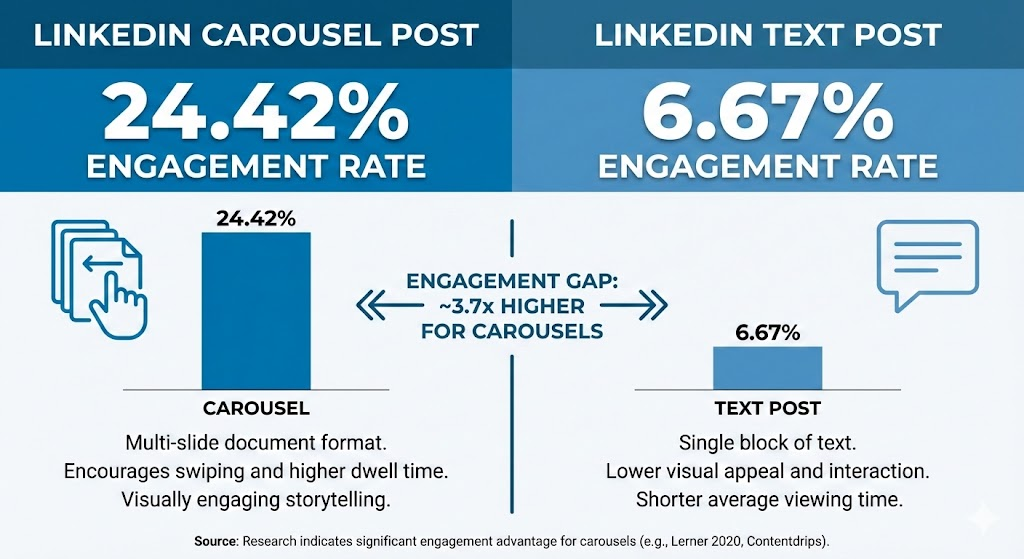 Carousel vs Text Post Engagement Comparison
The Anatomy of a High-Performing Carousel
Every carousel that performs well has four parts:
1. The Hook Slide
Your first slide has one job: make people stop scrolling. It needs to create curiosity or promise specific value. No logos. No introductions. Just the hook.
2. The Content Slides
These deliver on your hook's promise. Each slide should contain one idea. Not two. Not three. One.
3. The Rehook Slide
This is the slide most creators skip. It goes in the middle of your carousel (around slide 4-5 in a 10-slide post). We'll cover this technique in detail below.
4. The CTA Slide
Your final slide tells readers what to do next. Follow, comment, save, or visit a link in your bio.
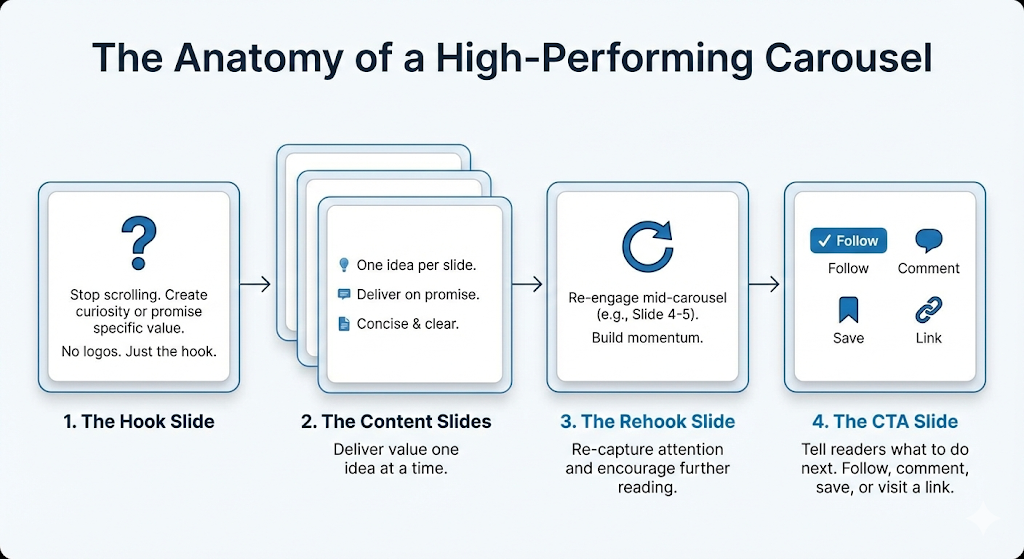 The 4-Part Carousel Structure
How to Write a First Slide That Stops the Scroll
Your hook slide determines whether anyone sees the rest of your content. Here are five formulas that work:
Formula 1: The Specific Number
"7 LinkedIn mistakes costing you leads" "12 ChatGPT prompts for sales emails"
Numbers work because they set clear expectations. Readers know exactly what they're getting.
Formula 2: The Counterintuitive Statement
"Stop posting on LinkedIn every day" "Your engagement rate doesn't matter"
This creates cognitive friction. People stop to understand why you're contradicting common advice.
Formula 3: The Before/After
"I went from 200 to 50,000 followers in 8 months. Here's how." "My posts got 10x more reach after I changed one thing."
Transformation stories pull people in because they want the same result.
Formula 4: The Direct Question
"Why do your posts get ignored?" "What makes some profiles get 10x more views?"
Questions activate the brain differently than statements. Readers start thinking about their own answer.
Formula 5: The Bold Claim
"The only LinkedIn strategy that matters in 2024" "This framework works for any industry"
Bold claims need to be backed up in your content. But they stop the scroll.
Pick one formula. Write your hook. Then delete any unnecessary words. "7 LinkedIn mistakes that could potentially be costing you valuable leads" becomes "7 LinkedIn mistakes costing you leads."
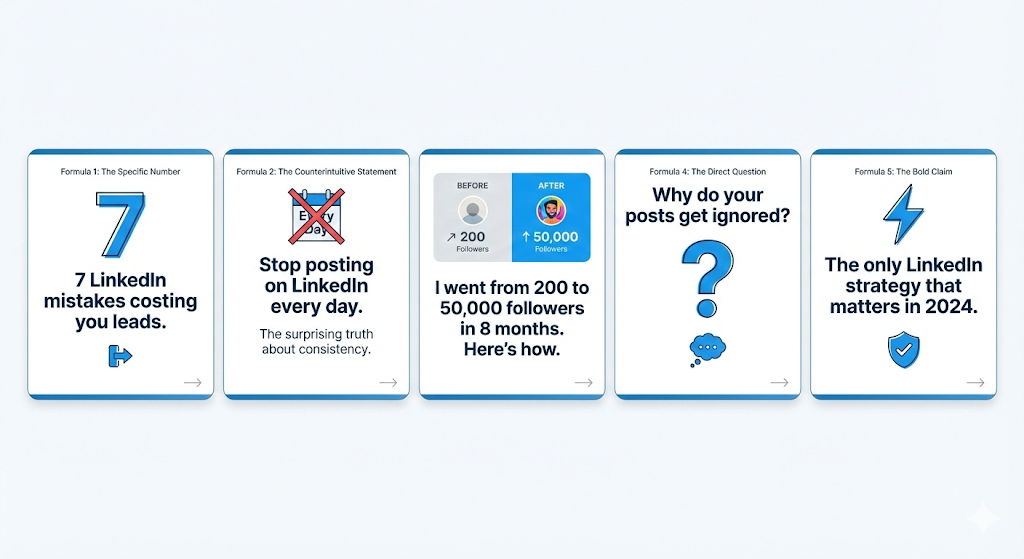 5 Hook Formulas That Work
Design Specs That Matter
Wrong dimensions kill reach. Here are the exact numbers:
Dimensions: 1080 x 1350 pixels (4:5 vertical ratio)
This is the maximum vertical space LinkedIn allows. Taller images take up more screen real estate, which means more visibility in the feed.
Font Sizes:
- Headings: 80px minimum
- Subheadings: 55px
- Body text: 45px minimum
Words Per Slide: 25-50 maximum
Why these specific numbers? Because 51% of LinkedIn users browse on mobile. Text that looks fine on your laptop becomes unreadable on a phone screen.
If your carousel isn't optimized for mobile, you're losing up to 75% of potential reach.
Slide Count: 6-10 slides
Data shows carousels with 5-10 slides get 15% more reach than average. Carousels with only 1-4 slides get 35% less reach.
The sweet spot is 8-10 slides. Enough to deliver real value. Not so many that people drop off.
Visual Consistency:
- Use the same font throughout
- Stick to 2-3 colors maximum
- Keep your layout consistent across slides
5 Content Frameworks That Work
You don't need to invent new ideas. You need proven structures. Here are five frameworks you can use for any topic:
Framework 1: Problem → Solution → Benefits → CTA
- Slide 1: Hook identifying the problem
- Slides 2-3: Explain why this problem exists
- Slides 4-6: Present your solution step by step
- Slides 7-8: Show the benefits of implementing it
- Slide 9-10: Call to action
This works for how-to content, product explanations, and case studies.
Framework 2: Myth vs Reality
- Slide 1: "5 [topic] myths holding you back"
- Slides 2-9: One myth per slide, with the reality below it
- Slide 10: Summary or CTA
This works because it positions you as someone who knows what others get wrong.
Framework 3: Do This, Not That
- Slide 1: Hook about common mistakes
- Slides 2-8: Split each slide in half. Left side shows the wrong approach. Right side shows the right approach.
- Slide 9-10: Summary and CTA
Visual contrast makes this format easy to scan and remember.
Framework 4: The Listicle
- Slide 1: "X things/tips/tools for [outcome]"
- Slides 2-9: One item per slide with brief explanation
- Slide 10: CTA
Simple. Predictable. Works every time because readers know exactly what they're getting.
Framework 5: The Story Arc
- Slide 1: Hook with transformation hint
- Slide 2-3: The "before" situation
- Slides 4-5: The turning point or realization
- Slides 6-8: The actions taken
- Slide 9: The results
- Slide 10: Lesson and CTA
Stories create emotional investment. Use this for personal experiences and case studies.
The Rehook Technique
Here's what most carousel creators miss: people drop off mid-carousel.
The solution is a "Rehook" slide placed around the middle of your carousel (slide 4 or 5 in a 10-slide post).
A Rehook slide does one of three things:
1. Creates Fresh Curiosity
"But here's where it gets interesting..." "The next part is what actually matters..."
2. Summarizes Progress
"So far we've covered X and Y. Now for the part most people skip..."
3. Promises Specific Value
"The next 3 slides contain the exact template I used..."
The Rehook slide acknowledges that readers have invested time. Then it gives them a reason to keep going.
Think of it as a second hook in the middle of your content. Without it, you're relying on momentum alone to carry people through.
Caption and Hashtag Strategy
Your caption supports your carousel. It doesn't replace it.
Optimal Caption Length: 1,200-1,500 characters
Your caption should:
- Repeat or expand on your hook
- Add context not in the carousel
- Include a clear call to action
- Ask a question to encourage comments
Hashtag Strategy: Use 3-5 hashtags
More than 5 hashtags can trigger spam filters. Fewer than 3 limits discovery.
Mix hashtag sizes:
- 1-2 broad hashtags (500K+ followers)
- 2-3 niche hashtags (10K-100K followers)
Place hashtags at the end of your caption or in a comment. Both work. Putting them in your caption is slightly better for reach.
Common Mistakes to Avoid
Mistake 1: Too Much Text Per Slide
If your slide has more than 50 words, split it into two slides. Dense slides get skipped.
Mistake 2: Weak First Slide
Putting your name, logo, or a generic title on slide one wastes your hook opportunity. Lead with value or curiosity.
Mistake 3: No Slide Numbers
Adding "1/10" or similar to each slide shows progress and encourages completion. Small detail. Real impact.
Mistake 4: Ignoring Mobile
Test your carousel on your phone before posting. If you squint to read it, your text is too small.
Mistake 5: Same Format Every Time
Audiences get bored. Rotate between different frameworks. Change your color scheme occasionally.
Mistake 6: Skipping the CTA
Every carousel needs a final slide telling readers what to do. "Follow for more" is fine. "Comment your biggest challenge" is better.
Step-by-Step Creation Guide
Here's how to create a carousel from scratch:
Step 1: Choose Your Topic
Pick something your audience struggles with. Check your comments and DMs for questions people ask repeatedly.
Step 2: Select a Framework
Pick one of the five frameworks above. Don't mix frameworks in a single carousel.
Step 3: Write Your Hook
Use one of the five hook formulas. Write 3-4 versions. Pick the most specific one.
Step 4: Outline Your Slides
Write one sentence per slide describing what it covers. This is your skeleton.
Step 5: Write Slide Copy
Expand each outline point into 25-50 words. One idea per slide. Cut ruthlessly.
Step 6: Add Your Rehook
Insert a Rehook slide at the midpoint. Make it create curiosity about what's coming.
Step 7: Design Your Slides
Use the specs above. 1080x1350px. Large fonts. Consistent styling. Include slide numbers.
Step 8: Test on Mobile
Open your slides on your phone. Can you read everything without zooming? If not, increase font size.
Step 9: Write Your Caption
1,200-1,500 characters. Hook, context, CTA, question. Add 3-5 hashtags.
Step 10: Post and Engage
Reply to every comment in the first hour. This signals to LinkedIn that your post deserves more reach.
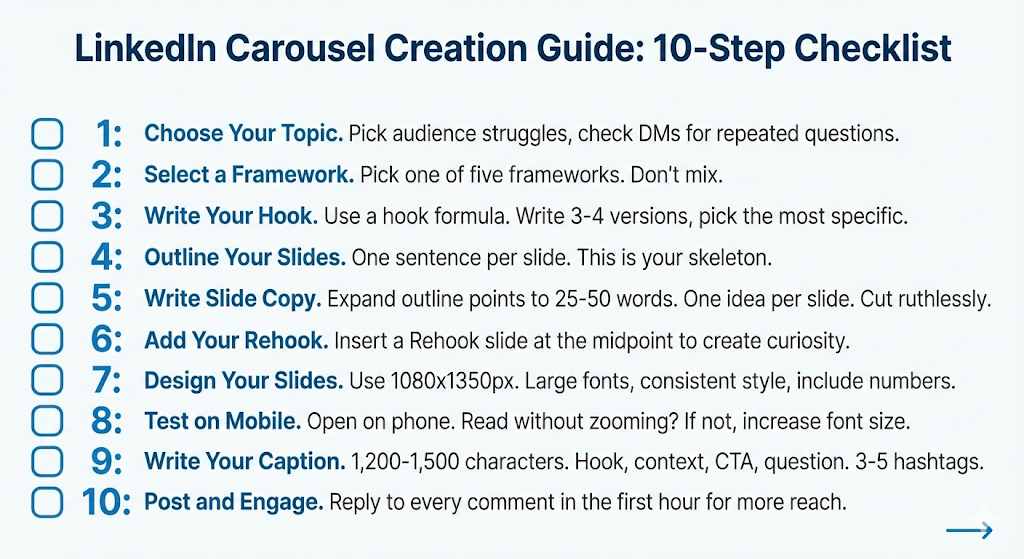 10-Step Carousel Creation Checklist
Start Creating
Carousels take more effort than text posts. But they get 3-4x the results.
You now have the exact specs, frameworks, and techniques that work. The only thing left is to create.
If you want to skip the design work, Postking's free carousel generator handles the formatting for you. Write your content, pick a template, and export slides ready to post.
Whatever tool you use, start with one carousel this week. Use the Problem → Solution → Benefits → CTA framework. Test your hook with the Specific Number formula.
Then check your analytics. Carousels that follow these guidelines consistently outperform everything else on LinkedIn.
Related Reads
Written by
Shanjai Raj
Founder at Postking
Building tools to help professionals grow on LinkedIn. Passionate about content strategy and personal branding.
View all postsYou might also like
LinkedIn Carousel Generator
Try our free linkedin carousel generator to enhance your LinkedIn presence.
LinkedIn Post Formatter
Try our free linkedin post formatter to enhance your LinkedIn presence.
How to Get More Engagement on LinkedIn in 2026 (Data-Backed Strategies)
Learn proven strategies to boost LinkedIn engagement. Covers the algorithm changes, hook formulas, content formats, and the first-hour tactics that actually work.
How to Get Inbound Leads on LinkedIn as a Consultant: The Authority-First Approach
Stop chasing clients. Learn how consultants build authority through content, turn engagement into natural conversations, and create a sustainable inbound lead system that works while you're serving clients.
LinkedIn Hook Generator
Try our free linkedin hook generator to enhance your LinkedIn presence.
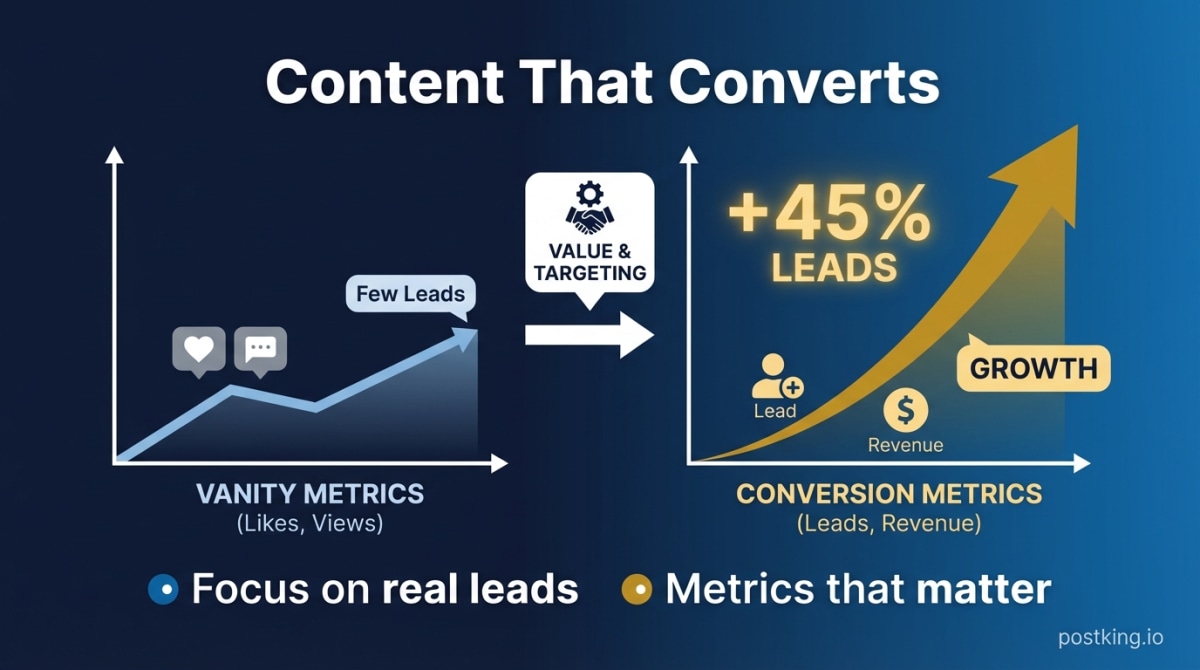
LinkedIn Content That Actually Converts (Not Just Gets Likes)
Stop chasing vanity metrics. Learn why viral posts rarely drive revenue, how to create content that generates leads, and the metrics that actually matter for founders.
more engagement with carousels
Create scroll-stopping LinkedIn carousels in under 60 seconds. No design skills needed.
Try Carousel Generator